
Gmail Automation with Google Apps Script — A Practical, Technical Guide

Keywords: Gmail automation, Google Apps Script email workflow, email productivity
Meta Description: Learn how to build reliable Gmail automation with Google Apps Script. This step-by-step guide covers automatic labeling, conditional auto-responses, task creation from email threads, Google Sheets tracking, authentication, best practices, and production hardening to boost email productivity.
1. Introduction — Email Overload Is a Productivity Tax
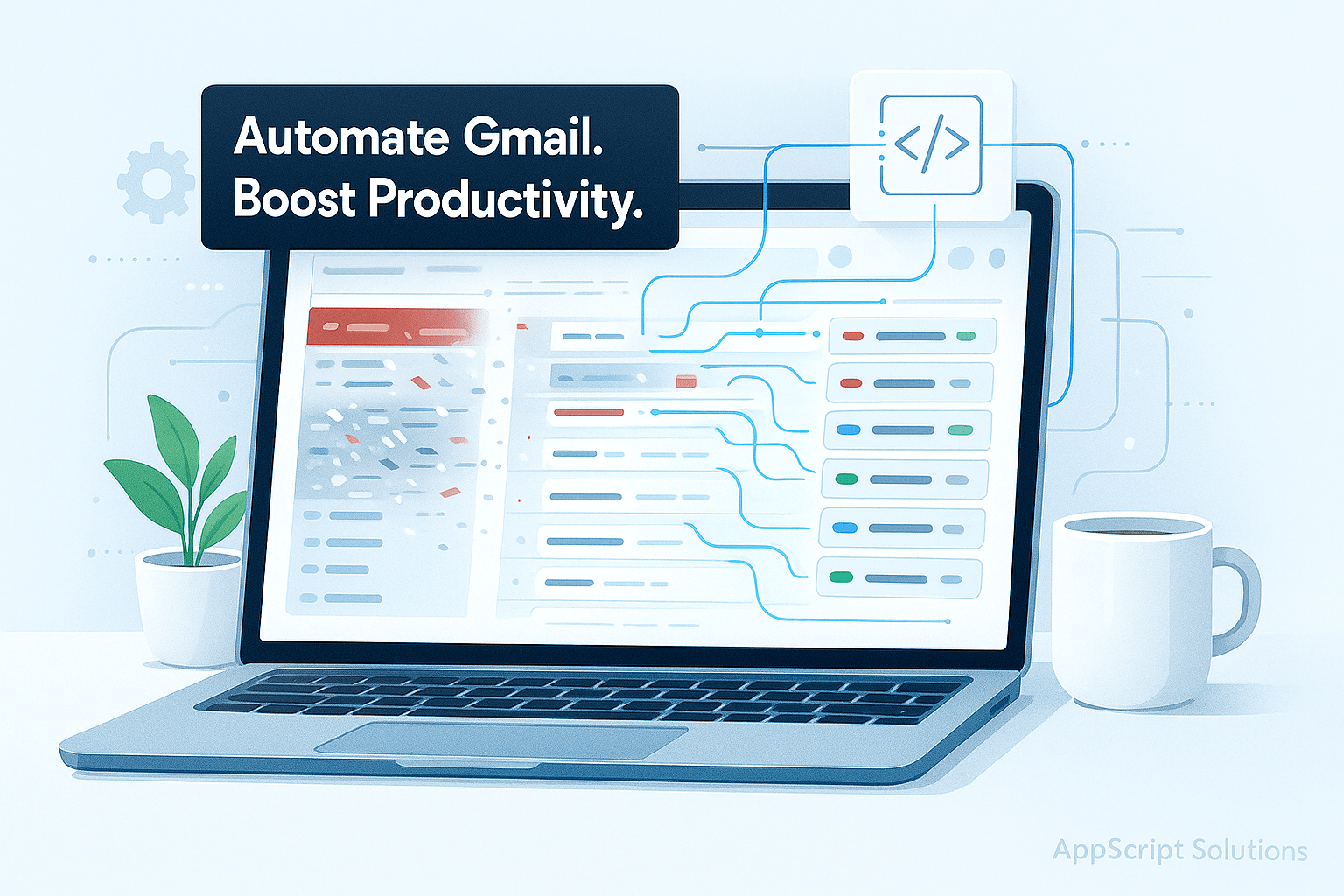
Email remains central to business communication, but inbox churn — triage, responses, follow-ups — consumes valuable time. Gmail automation using Google Apps Script (GAS) reduces manual handling, enforces consistent workflows, and improves response times. This guide assumes intermediate technical familiarity (JavaScript, basic Google Workspace) and focuses on implementable, production-ready automation patterns for teams and technical leads.
2. Quick Overview: Google Apps Script + Gmail
Google Apps Script (GAS) is a server-side JavaScript environment hosted by Google that interacts with Gmail via the built-in GmailApp service or the Gmail REST API (for advanced/external calls).
Typical Automation Patterns:
- Scheduled (time-driven) checks
- Event-driven label checks
- Webhook/push (Gmail API + Pub/Sub for advanced setups)
Key Notes:
- Scripts run under the authorizing user’s identity; OAuth scopes determine read/write access.
- Use installable time-driven triggers (e.g., every 1–15 minutes, hourly, daily) for production rather than simple triggers.
Useful References:
3. Setup Checklist (Before Coding)
- Create a test Google account/test mailbox for development and QA. Never test auto-reply or mass sends on your production account.
- In Apps Script editor: Extensions → Apps Script. Use a standalone script or a container-bound script tied to a Sheet or Doc.
- Set the project timezone (e.g., Asia/Karachi) in Project Settings.
- If using Google Tasks, Gmail API, or Pub/Sub, enable the corresponding APIs in Google Cloud Console and add the Advanced Service in Apps Script (Services → Add a service).
- Add explicit
oauthScopesinappsscript.jsonfor documentation (example provided later). - Create test labels in Gmail (e.g.,
AutoReplied,ToDo,Processed) for bot use.
4. Core Patterns & Scripts (Step-by-Step)
Notes:
- Use installable time-driven triggers for periodic jobs (e.g., every 5–15 minutes).
- Use labels to mark a thread’s processing state (idempotency).
- Use PropertiesService or a tracking sheet to remember last processed IDs.
- Use LockService to prevent overlapping runs.
4.1 Automatic Email Labeling (Detect Invoices or New Leads)
Goal: Detect incoming messages matching criteria, add a label, and optionally forward or notify Slack.
/**
 * autoLabelEmails
 * - Searches unread inbox threads using Gmail search queries
 * - Adds a label to matching threads and marks processed via "Processed" label
 */
function autoLabelEmails() {
  const processedLabelName = 'Processed';
  const targetLabelName = 'Leads'; // create or reuse
  const processedLabel = GmailApp.getUserLabelByName(processedLabelName) || GmailApp.createLabel(processedLabelName);
  const targetLabel = GmailApp.getUserLabelByName(targetLabelName) || GmailApp.createLabel(targetLabelName);

  // Example query: unread in inbox from specific domain or subject keywords
  const query = 'in:inbox is:unread (subject:("New lead" OR "Contact request") OR from:(@example.com))';
  const maxThreads = 50; // batch size per run

  const threads = GmailApp.search(query, 0, maxThreads);
  if (!threads || threads.length === 0) {
    Logger.log('No matching threads.');
    return;
  }

  threads.forEach(thread => {
    try {
      thread.addLabel(targetLabel);
      thread.addLabel(processedLabel); // prevents re-processing in next runs
      Logger.log('Labeled thread: %s', thread.getFirstMessageSubject());
    } catch (err) {
      Logger.log('Error labeling thread: %s', err);
    }
  });
}
Implementation Notes:
- Tune query for your business:
from:,subject:,has:attachment,label:, etc. - Use a
Processedlabel for idempotency. - Keep
maxThreadsmodest; process large volumes in paging windows.
4.2 Conditional Auto-Responses (Safely Reply to Emails)
Goal: Automatically reply to qualifying unread threads while avoiding reply loops and mailing list responders.
/**
 * conditionalAutoRespond
 * - Finds unread threads that match criteria and have not been auto-replied
 * - Sends an automated reply and marks the thread with "AutoReplied"
 */
function conditionalAutoRespond() {
  const autoReplyLabelName = 'AutoReplied';
  const autoReplyLabel = GmailApp.getUserLabelByName(autoReplyLabelName) || GmailApp.createLabel(autoReplyLabelName);

  // Only process unread threads with specific keyword, and that haven't been auto-replied
  const query = 'in:inbox is:unread subject:("Pricing" OR "Support") -label:' + autoReplyLabelName;
  const threads = GmailApp.search(query, 0, 30);

  for (const thread of threads) {
    try {
      const messages = thread.getMessages();
      const lastMessage = messages[messages.length - 1];
      const from = lastMessage.getFrom().toLowerCase();

      // Skip no-reply or mailing lists
      if (from.includes('no-reply') || lastMessage.isDraft()) {
        thread.addLabel(autoReplyLabel); // mark so we won't re-check
        continue;
      }

      const replyBody =
        "Hi,\n\nThanks for your message. We've received your request and a team member will respond within 24 hours.\n\nIf this is urgent, call +92-308-9546586.\n\nBest,\nSupport Team";

      // Use message.reply to maintain threading
      lastMessage.reply(replyBody);
      thread.addLabel(autoReplyLabel);

      Logger.log('Auto-replied to: %s', lastMessage.getSubject());

    } catch (err) {
      Logger.log('Error in auto-reply: %s', err);
    }
  }
}
Safety & Best Practices:
- Add
-label:AutoRepliedto the query to avoid replying twice. - Skip addresses with
no-reply,mailer-daemon, or mailing list patterns. - For high-volume replies, send a single confirmation per thread and hand follow-ups to humans.
- Avoid including user-provided content verbatim in replies (security/privacy).
4.3 Create Tasks from Email Threads (Google Tasks Integration)
Goal: Convert qualifying emails into Google Tasks for follow-up.
Prerequisites:
- Enable the Google Tasks API in Google Cloud Console.
- In Apps Script editor: Services → Add a service → Tasks API (v1).
- Include
enabledAdvancedServicesfor Tasks inappsscript.json(example below).
/**
 * createTasksFromEmails
 * - For threads labeled "ToDo", create a Google Task for each thread
 * - Requires Tasks advanced service enabled
 */
function createTasksFromEmails() {
  const todoLabelName = 'ToDo';
  const processedLabelName = 'TaskCreated';

  const todoLabel = GmailApp.getUserLabelByName(todoLabelName);
  if (!todoLabel) {
    Logger.log('No ToDo label found. Create label "%s" and tag threads to be turned into tasks.', todoLabelName);
    return;
  }

  const processedLabel = GmailApp.getUserLabelByName(processedLabelName) || GmailApp.createLabel(processedLabelName);

  const threads = GmailApp.search('label:' + todoLabelName + ' -label:' + processedLabelName, 0, 50);

  for (const thread of threads) {
    try {
      const msg = thread.getMessages().pop();
      const title = msg.getSubject().slice(0, 250) || 'Follow up on email';
      const notes = msg.getPlainBody().slice(0, 1000) + '\n\nThreadId: ' + thread.getId();

      // Create a Task in default tasklist
      const task = {
        title: title,
        notes: notes
        // due: "2025-12-31T12:00:00.000Z" // example ISO due date
      };

      // '@default' refers to the authenticated user's default tasklist
      const created = Tasks.Tasks.insert(task, '@default');
      Logger.log('Created task: %s', created.id);

      // Mark thread processed
      thread.addLabel(processedLabel);

    } catch (err) {
      Logger.log('Error creating task from thread: %s', err);
    }
  }
}
Notes:
- Requires enabling Tasks API in Cloud Console and Advanced Service in Apps Script.
- Alternatively, create Calendar events or push to third-party task managers via APIs (store API keys in
PropertiesService).
4.4 Integrate with Google Sheets for Tracking & Analytics
Goal: Log processed threads to a Google Sheet for auditing, SLA tracking, or reporting.
/**
 * appendToTrackingSheet
 * - Append metadata for processed threads to a tracking Sheet
 * - Demonstrates batching to avoid slow per-row calls
 */
function appendToTrackingSheet(processedThreads) {
  // processedThreads: array of objects {subject, from, date, threadId, action}
  const ssId = 'YOUR_SPREADSHEET_ID'; // replace
  const sheetName = 'EmailTracking';
  const ss = SpreadsheetApp.openById(ssId);
  let sheet = ss.getSheetByName(sheetName);
  if (!sheet) {
    sheet = ss.insertSheet(sheetName);
    sheet.appendRow(['ProcessedAt', 'Subject', 'From', 'Date', 'ThreadId', 'Action']);
  }

  const rows = processedThreads.map(p => [
    new Date(),
    p.subject,
    p.from,
    p.date ? p.date.toISOString() : '',
    p.threadId,
    p.action
  ]);

  // Append rows in one batch
  sheet.getRange(sheet.getLastRow() + 1, 1, rows.length, rows[0].length).setValues(rows);
}
Integration Tip: In labeling/auto-reply functions, collect processed thread metadata and call this helper once per run.
5. Authentication, Scopes, and Permissions
Key Concepts:
- GAS automatically requests needed scopes, but you can declare them explicitly in
appsscript.json. - Sensitive scopes (e.g., Gmail read/modify) prompt stronger OAuth consent and may require verification for distribution.
- For domain-wide automations, use Google Workspace domain-wide delegation with service accounts (admin configuration required). Service accounts cannot access personal Gmail accounts without domain delegation.
- Store credentials/API keys securely in
PropertiesService.getScriptProperties()and restrict Cloud Project access.
Example appsscript.json (Partial):
{
  "timeZone": "Asia/Karachi",
  "dependencies": {
    "enabledAdvancedServices": [
      {
        "userSymbol": "Tasks",
        "serviceId": "tasks",
        "version": "v1"
      }
    ]
  },
  "exceptionLogging": "STACKDRIVER",
  "oauthScopes": [
    "https://www.googleapis.com/auth/gmail.modify",
    "https://www.googleapis.com/auth/gmail.send",
    "https://www.googleapis.com/auth/spreadsheets",
    "https://www.googleapis.com/auth/tasks",
    "https://www.googleapis.com/auth/script.external_request"
  ]
}
How to Enable Advanced Services:
- In Apps Script editor: Services (left sidebar) → + → Add Tasks API.
- In Cloud Console: Enable the corresponding REST API (e.g., Tasks API) for the project.
6. Testing, Safety & Anti-Looping Strategies
- Sandbox Testing: Use a test account with a small message subset. Avoid replying to real customers during tests.
- Anti-Loop: Mark auto-replied threads with
AutoRepliedlabel; include-label:AutoRepliedin queries. Optionally add a rate limiter. - Skip Mailing Lists: Avoid replying to
no-reply,mailer-daemon, or list addresses. - Throttling & Quotas: Gmail has usage limits. Pace automated sends to avoid hitting quotas.
- Audit Trail: Log processed items to a tracking sheet and use Logger/Stackdriver for diagnosis.
7. Performance & Scalability Considerations
- Batch Operations: Use
search(query, start, max)paging and process in small batches (e.g., 50 threads per run). - Bulk Writes: In Sheets, collect rows and use
setValuesonce instead ofappendRowin loops. - Locking: Use
LockServiceto prevent concurrent trigger runs. - Retries: Implement exponential backoff for failed external API calls.
- Partitioning: Partition searches by label/date ranges to distribute load.
- Push Notifications (Advanced): Use Gmail API
watch+ Pub/Sub for near real-time processing (requires GCP Pub/Sub setup).
8. Common Pitfalls & How to Avoid Them
- Scope & Verification Headaches: Publishing scripts with sensitive scopes may require Google verification. Domain verification is simpler for internal use.
- Reply Loops: Use labels and heuristics to prevent auto-reply loops with other autosenders.
- Unintended Exposures: Never embed API keys in public code or repos; use
PropertiesService. - Over-Aggressive Queries: Start with conservative queries to avoid irrelevant matches.
- Rate Limiting: Monitor logs and add pacing to avoid throttling.
9. Example Real-World Use Cases
- Support Triage: Auto-label support requests by product, create a task for Level 1 triage, and notify Slack.
- Sales Lead Capture: Label incoming leads, auto-reply with next steps, and append metadata to a Sheet for CRM import.
- Invoice Processing: Detect emails with
subject:invoiceand attachments, addFinancelabel, and forward to finance mailbox. - HR Onboarding: Track candidate replies, auto-create tasks for recruiters, and log interactions in a Sheet.
10. Deployment Checklist (Ready for Production)
- Tests pass on staging/test mailbox.
- Processed/idempotency labels in place.
- Triggers configured (time-driven) with safe frequency.
- Advanced APIs enabled (Tasks, Gmail API) if used.
appsscript.jsonincludes requiredoauthScopes.- Logging & error alerts configured (email/Slack notifications to admins).
- Documentation for failover/manual intervention steps.
11. Advanced Strategies & Integrations
- Pub/Sub Gmail Push: Use Gmail API
watch+ Cloud Pub/Sub for near real-time processing. - Smart Replies/Summarization: Integrate with LLMs (e.g., ChatGPT) via
UrlFetchAppfor context-aware replies (store API keys inPropertiesService). - Hybrid Automation: Combine Apps Script with Cloud Functions for heavy processing or third-party API calls.
- Multi-Account Orchestration: Use domain-wide delegation with service accounts for domain-wide setups.
12. Security Considerations
- Principle of Least Privilege: Request only necessary scopes.
- Data Minimization: Avoid storing full email bodies; truncate/redact PII for analytics.
- Consent & Compliance: Ensure auto-replies comply with privacy policies and local regulations (e.g., data residency, opt-out).
- Secrets Management: Use
PropertiesService.getScriptProperties()and restrict project access. Avoid hardcoding secrets.
13. Conclusion & Next Steps
Gmail automation with Google Apps Script is a practical way to reclaim hours of manual work. Start with a small, well-scoped automation (labeling + tracking), validate on a test mailbox, and expand to auto-responses and task creation. As complexity grows, adopt advanced patterns (Tasks API, Pub/Sub) and harden security/scaling.
14. Useful Resources & Links
- Apps Script Gmail Reference
- Gmail API (REST)
- Apps Script Best Practices & Quotas
- Google Tasks API
- Internal Guide: /blog/google-sheets-automation
- Internal Case Study: /case-studies/email-automation-success
15. Ready-to-Use Metadata for Publishing
SEO Title: Gmail Automation with Google Apps Script — Practical Guide to Email Workflows
Meta Description: Build reliable Gmail automation with Google Apps Script. This technical guide covers labeling, conditional auto-responses, task creation, Sheets integration, security, and deployment best practices.
Suggested Slug: gmail-automation-google-apps-script
Suggested Tags: Gmail automation, Google Apps Script, email workflow, email productivity, Google Tasks, automation best practices
16. Offer: Need Help Building Production-Grade Gmail Automations?
If you need hands-on help designing and deploying secure, scalable Gmail automation (labeling, auto-responses, Sheets tracking, Tasks integration, or Pub/Sub push pipelines), I can build and deliver a tested solution tailored to your workflows.
Contact: WhatsApp +92 308 9546586 or reply with your key requirements (volume, business rules, and whether you use Google Workspace domain), and I’ll propose a project plan.
Google Chat: You can reach us through Google chat at appscript.solutions@gmail.com
Appendix: Useful Code Snippets Recap
autoLabelEmails()— Label matching unread threadsconditionalAutoRespond()— Safe auto-replies with anti-loop guardscreateTasksFromEmails()— Create Google Tasks (requires Tasks advanced service)appendToTrackingSheet()— Batch append processed metadata to a Sheet