
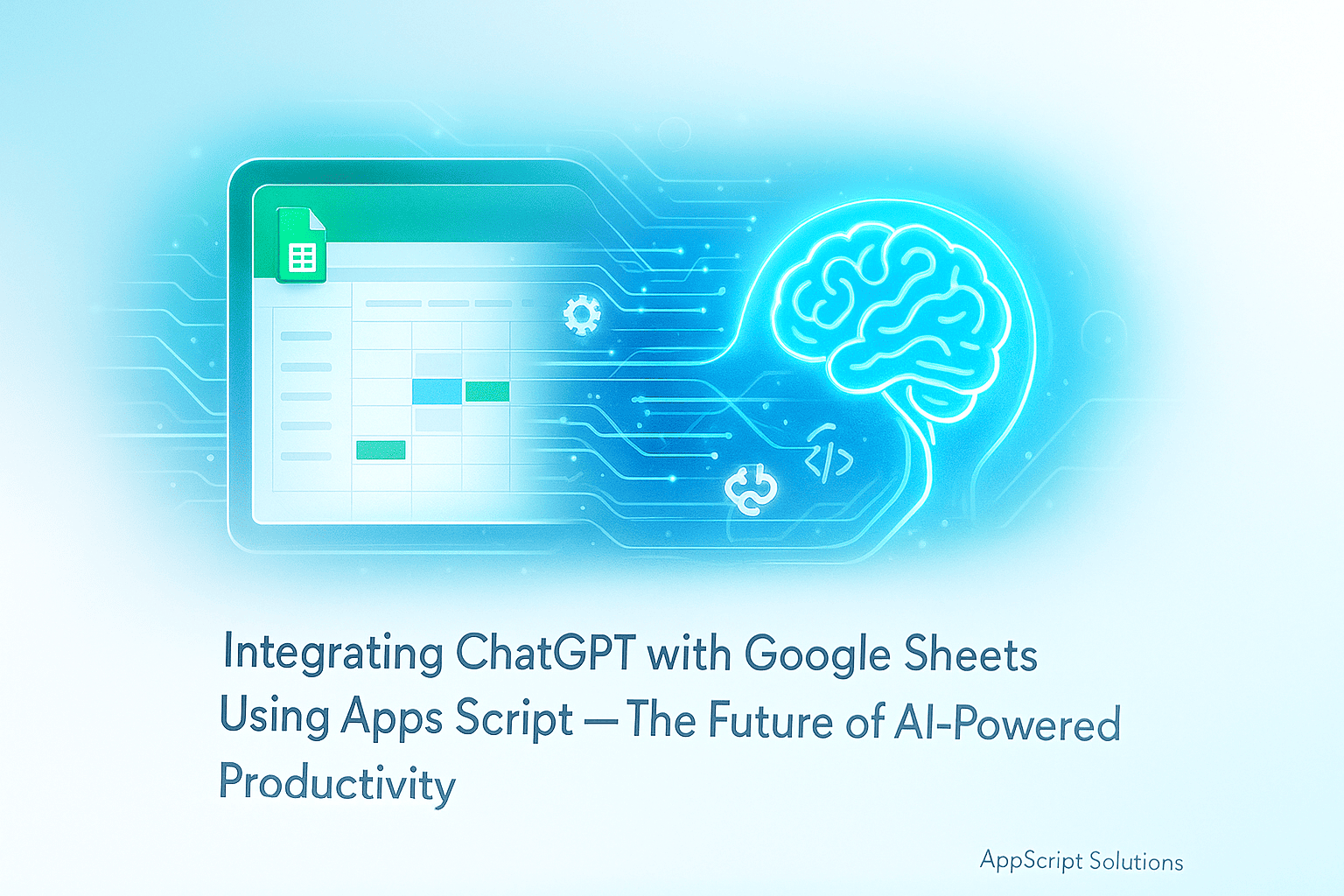
Integrating ChatGPT with Google Sheets Using AppScript: The Future of AI-Powered Productivity

Meta Title: Integrate ChatGPT with Google Sheets Using Apps Script — Automate Content & Data Workflows
Meta Description: Learn how to connect ChatGPT to Google Sheets with Apps Script. Build AI-powered automations for content creation, summaries, translations, and data analysis — step-by-step.
🚀 Introduction: The New Frontier of Spreadsheet Intelligence
Spreadsheets have always been the backbone of data organization, but with the rise of AI-powered tools like ChatGPT, they’re evolving into something much more — intelligent assistants for work.
Imagine typing a prompt into Google Sheets and instantly generating product descriptions, summaries, or data insights — all without leaving your spreadsheet.
That’s the power of ChatGPT + Google Sheets integration using Apps Script. In this guide, we’ll walk you through how to connect OpenAI’s API with Google Sheets, create automated workflows, and supercharge your productivity.
💬 Brought to you by AppScript Solutions — experts in custom Google Apps Script automations, dashboards, and AI-driven workflow solutions.
⚙️ What You’ll Need
Before we begin, make sure you have:
- A Google account with access to Google Sheets
- Basic knowledge of JavaScript / Apps Script
- An OpenAI API key (https://platform.openai.com/account/api-keys)
- A Google Sheet to use as your automation workspace
🧩 Step 1: Setting Up Your Google Apps Script Project
- Open your Google Sheet.
- Go to Extensions → Apps Script.
- Delete any existing code and paste the following setup script:
const OPENAI_API_KEY = 'YOUR_API_KEY_HERE';

function callChatGPT(prompt) {
  const url = 'https://api.openai.com/v1/chat/completions';
  const payload = {
    model: 'gpt-3.5-turbo',
    messages: [{ role: 'user', content: prompt }],
    temperature: 0.7
  };

  const options = {
    method: 'post',
    headers: {
      'Authorization': `Bearer ${OPENAI_API_KEY}`,
      'Content-Type': 'application/json'
    },
    payload: JSON.stringify(payload),
    muteHttpExceptions: true
  };

  try {
    const response = UrlFetchApp.fetch(url, options);
    const data = JSON.parse(response.getContentText());
    return data.choices[0].message.content.trim();
  } catch (e) {
    Logger.log('Error: ' + e.message);
    return '⚠️ Error calling ChatGPT API';
  }
}
✅ Explanation:
- The script connects to the OpenAI API endpoint.
- It sends a user’s prompt and receives ChatGPT’s generated text.
- Errors are logged for debugging.
💬 Step 2: Using ChatGPT Directly from Google Sheets
You can now create a custom function to call ChatGPT inside a cell.
Add this function below your previous code:
function GPT(prompt) {
  return callChatGPT(prompt);
}
Now in your sheet, simply type:
=GPT("Write a motivational quote about productivity.")
ChatGPT will instantly respond within your spreadsheet cell.
Yes — your spreadsheet just became AI-powered. 🔥
🧠 Step 3: Example Use Cases and Automation Workflows
Let’s explore 4 powerful AI workflows you can implement today.
🧾 1. Automated Meeting Summary Generator
Use Case: Turn raw meeting notes into concise summaries with action items.
Setup:
- Column A: Meeting notes
- Column B: Output summary formula
In cell B2:
=GPT("Summarize this meeting and highlight next steps: " & A2)
Result: ChatGPT delivers a structured summary and next-step list directly in your sheet.
🌐 2. Multilingual Content Expansion
Use Case: Translate or rewrite marketing content into multiple languages.
Example Formula:
=GPT("Translate this text to Spanish and French: " & A2)
Tip: Create a dropdown for target languages and dynamically adjust the prompt:
=GPT("Translate this text to " & B2 & ": " & A2)
📊 3. Data Insight Generator
Use Case: Analyze sales or performance data and generate quick summaries.
Example:
=GPT("Analyze the following sales data and summarize key insights: " & TEXTJOIN(", ", TRUE, A2:A10))
ChatGPT returns instant data narratives — perfect for quick executive summaries.
🧰 4. Automated Content Generation for Reports
Use Case: Automatically generate paragraph summaries or introductions for Google Sheet dashboards.
=GPT("Write a short paragraph summarizing this KPI trend: " & B2)
Integration: Combine with Google Slides or Docs via Apps Script for auto-report generation.
⚡ Step 4: Error Handling and API Rate Limits
To prevent over-use or API throttling, wrap your calls with a delay or cache mechanism.
function safeGPT(prompt) {
  try {
    Utilities.sleep(1500); // slight delay for rate control
    return callChatGPT(prompt);
  } catch (e) {
    return "⚠️ Error or API limit reached";
  }
}
✅ Best Practices
- Use caching for repetitive prompts (
CacheService.getScriptCache()). - Respect OpenAI’s rate limits (typically 60 requests/minute).
- Secure your API key — don’t share the sheet publicly.
- Use error handling to prevent script interruptions.
🧩 Step 5: Going Beyond — Combine ChatGPT with Google Workspace
You can create powerful cross-tool automations:
| Workflow | Integration | Result |
|---|---|---|
| Email summarization | GmailApp + ChatGPT | Summarize long email threads into bullet points |
| Task automation | Sheets + Calendar | Convert GPT-generated tasks into calendar events |
| Document creation | DocsApp + GPT | Auto-generate reports and summaries in Google Docs |
💡 With Apps Script, ChatGPT can become your personal assistant across your entire Google Workspace.
🔒 Ethical & Practical Considerations
As you integrate AI into business workflows, remember:
- Validate all outputs before using them in decision-making.
- Avoid sending sensitive data to APIs.
- Inform your team when AI is part of the process.
- Regularly audit AI content for accuracy and bias.
Responsible automation ensures your AI systems augment human productivity — not replace it.
📈 Business Impact: The ROI of AI-Driven Sheets
| Task | Manual Time | Automated (with GPT) | Time Saved |
|---|---|---|---|
| Writing summaries | 30 mins | 2 mins | 93% |
| Data analysis | 45 mins | 5 mins | 89% |
| Content creation | 1 hr | 10 mins | 83% |
That’s hours saved daily — multiplied across your team, it’s a massive productivity boost.
🔗 Related Tutorials
- Smart Scheduling: Automating Google Calendar Workflows with Apps Script
- Gmail Automation: AI-Powered Email Workflows with Apps Script
- Automating Google Sheets with AppScript — From Manual to Magical
🧠 Conclusion: Empower Your Workflow with AI
Integrating ChatGPT into Google Sheets opens a new era of intelligent productivity.
From automating reports to generating ideas and analyzing data, AI becomes your daily assistant — right inside your spreadsheet.
💬 Want help building your custom ChatGPT + Google Sheets automation?
Connect with AppScript Solutions for professional setup and advanced workflow design.
📧 Email: appscript.solutions@gmail.com
💬 WhatsApp: +92 308 9546586