
Smart Scheduling: Automating Google Calendar Workflows with AppScript for Peak Productivity

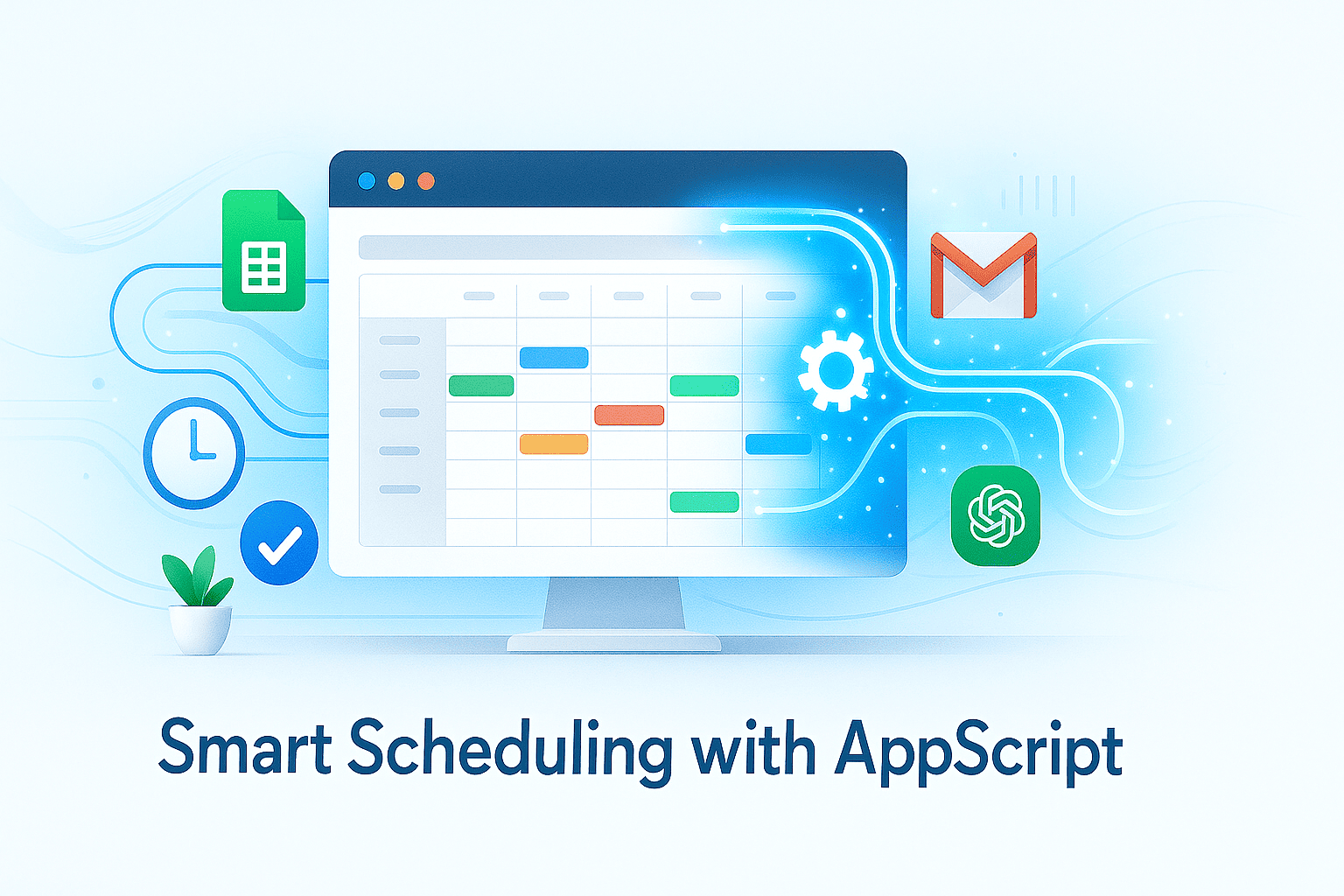
Meta Title: Smart Scheduling with AppScript — Automate Google Calendar for Productivity
Meta Description: Learn how to automate Google Calendar with AppScript to eliminate manual scheduling, streamline workflows, and boost productivity. Includes real-world scripts and setup guides by AppScript Solutions.
🧭 Introduction: The Hidden Cost of Manual Scheduling
In today’s hyper-connected workplace, professionals spend up to 25% of their time managing calendars, scheduling meetings, and responding to availability requests.
That’s time not spent on deep work, strategy, or innovation.
Whether you’re a team leader juggling multiple meetings or a consultant coordinating with clients, manual scheduling is a silent productivity killer.
But what if you could automate it — entirely?
That’s where Google Apps Script comes in. With the right scripts, you can automatically create, update, and synchronize calendar events, integrate your scheduling with Google Sheets, Gmail, or even ChatGPT, and save hours every week.
⚙️ What Is Google Apps Script?
Google Apps Script (AppScript) is a cloud-based scripting platform that lets you extend Google Workspace tools — like Calendar, Gmail, and Sheets — using JavaScript.
It allows you to:
- Automate repetitive scheduling tasks
- Integrate data between Google apps
- Trigger smart workflows in real-time
- Build custom solutions for your team’s scheduling needs
At AppScript Solutions, we specialize in building custom automation systems that connect Google Calendar, Sheets, and Gmail for seamless productivity.
💬 Reach us at appscript.solutions@gmail.com or on WhatsApp +92 308 9546586 to build yours today.
🧩 Understanding Google Calendar API Integration
Before jumping into the code, let’s understand how AppScript connects to Google Calendar.
Key Components:
- CalendarApp Service — Provides built-in methods for interacting with calendar events.
- Triggers — Allow scripts to run automatically based on time or events.
- GmailApp & SpreadsheetApp — Enable integration with Gmail and Google Sheets for data-driven scheduling.
🧠 Example 1: Automatically Create Calendar Events from Google Sheets
This workflow automates event creation when new rows are added to a Google Sheet — perfect for managing bookings, project schedules, or team task deadlines.
📋 Use Case
A project manager wants all new project deadlines entered in a Google Sheet to be automatically added to the team’s shared calendar.
💻 Script Example
function createCalendarEvents() {
  const sheet = SpreadsheetApp.getActiveSpreadsheet().getSheetByName('Schedule');
  const calendar = CalendarApp.getCalendarById('your_calendar_id@group.calendar.google.com');
  const data = sheet.getDataRange().getValues();

  for (let i = 1; i < data.length; i++) {
    const [date, title, description, location] = data[i];
    if (date && title) {
      calendar.createEvent(title, new Date(date), new Date(date).setHours(1), {
        description: description || '',
        location: location || ''
      });
    }
  }
}
🔧 How It Works
- Reads data from your “Schedule” sheet
- Creates a calendar event for each row
- Can be run manually or via time-driven trigger
💡 Pro Tip
Use an onEdit trigger to instantly sync updates whenever the sheet changes.
🕒 Example 2: Smart Meeting Reminders via Gmail Automation
This automation sends personalized email reminders to meeting participants — automatically, one day before the event.
💻 Script Example
function sendMeetingReminders() {
  const calendar = CalendarApp.getCalendarById('primary');
  const now = new Date();
  const tomorrow = new Date(now.getTime() + 24 * 60 * 60 * 1000);
  const events = calendar.getEventsForDay(tomorrow);

  events.forEach(event => {
    const guests = event.getGuestList();
    guests.forEach(guest => {
      GmailApp.sendEmail(
        guest.getEmail(),
        `Reminder: ${event.getTitle()}`,
        `Hi ${guest.getName()},\n\nJust a reminder for your meeting: ${event.getTitle()} scheduled at ${event.getStartTime()}.\n\n– AppScript Solutions`
      );
    });
  });
}
🧩 What This Script Does
- Fetches all events scheduled for tomorrow
- Retrieves guest lists automatically
- Sends reminder emails through Gmail
⚙️ When to Use
For recurring meetings, training sessions, or client follow-ups where consistency matters.
🧭 Example 3: Intelligent Scheduling Assistant (ChatGPT + Calendar + Sheets)
Take automation a step further with AI-powered scheduling suggestions using ChatGPT and Google Apps Script.
💡 Use Case
A sales manager wants to automatically generate the best meeting time suggestions for clients based on existing calendar availability and preferred hours.
💻 Implementation Concept
function suggestMeetingTimes() {
  const calendar = CalendarApp.getDefaultCalendar();
  const events = calendar.getEventsForDay(new Date());
  const busySlots = events.map(e => ({
    start: e.getStartTime(),
    end: e.getEndTime()
  }));

  // Hypothetical ChatGPT integration concept
  const prompt = `Suggest 3 ideal meeting times between 9am–5pm avoiding these slots: ${JSON.stringify(busySlots)}`;
  const suggestion = callChatGPT(prompt); // your custom ChatGPT API call

  Logger.log("Suggested times: " + suggestion);
}
🧠 Note
To connect ChatGPT, use the OpenAI API with an HTTP POST request from AppScript. This enables AI-driven calendar intelligence, creating smart, human-like scheduling flows.
🧱 Advanced Automation Strategies
Here are some next-level automation workflows you can build:
- Auto-reschedule conflicts by detecting overlapping events
- Sync events to Slack or Microsoft Teams notifications
- Create tasks in Google Tasks or Sheets based on calendar invites
- Trigger follow-up emails post-meeting using time-based triggers
Each of these can be customized and chained together for complete scheduling ecosystems.
🛡️ Best Practices and Error Handling
- ✅ Use
try...catchfor handling API or permission errors - ✅ Enable Calendar API in your Google Cloud Console
- ✅ Set time-driven triggers instead of manual execution
- ✅ Log outputs using
Logger.log()for debugging - ✅ Test scripts in a sandbox calendar before production deployment
📈 ROI of Smart Scheduling Automation
| Task | Manual Time (per week) | Automated Time | Savings |
|---|---|---|---|
| Meeting scheduling | 2 hours | 10 minutes | 90% |
| Reminders & follow-ups | 1 hour | 5 minutes | 92% |
| Calendar synchronization | 1 hour | Automated | 100% |
That’s a total potential time saving of 4–5 hours weekly, or 200+ hours per year per professional.
🔗 Related Articles
- From Manual to Magical: Automating Google Sheets Workflows with AppScript
- Gmail Automation with Google Apps Script — A Practical Guide to Email Workflows
🚀 Conclusion: Automate Your Time, Focus on What Matters
Smart scheduling isn’t just about saving clicks — it’s about reclaiming focus and reducing cognitive load.
By leveraging Google Apps Script and Calendar API, you can create a personalized scheduling system that works for you — not the other way around.
If you want to:
- Build intelligent Google Calendar automations
- Integrate Sheets, Gmail, and ChatGPT
- Eliminate repetitive scheduling work
💬 Contact AppScript Solutions today for custom automation solutions.
📧 Email: appscript.solutions@gmail.com
📱 WhatsApp: +92 308 9546586
Let’s make your workflow smarter — one script at a time.